What do I need before I start?
- Actorly Restore. On Actorly Watch the Export section says "Export is part of Actorly Restore" and "Your history is yours on every plan, and you can always read it here. Downloading it as a file is part of Actorly Restore."
- History to export. An export holds only the history Actorly still has. History removed under a plan's history window cannot be brought back, and the file says from which date it starts.
- No other export running. Actorly builds one export at a time.
- A readable plan. If Actorly could not read your plan, it says "Actorly could not read your plan, so it cannot say whether export is included." and starts nothing.
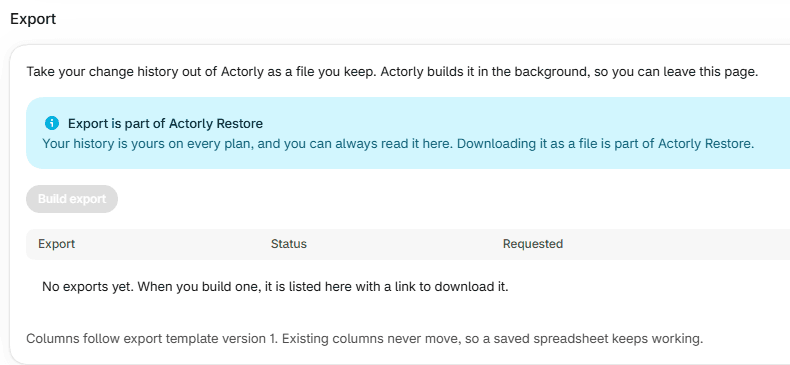
How do I build an export?
Which level of detail should I choose?
| Level | What the file holds |
|---|---|
| Basics | What changed, when, and who made it when Shopify reports it: resource, field, the value before and after, and how sure Actorly is about the person. |
| The middle level | Everything in Basics, plus the IDs Actorly stores and whether the field can be put back. |
| Detailed | The widest level. It adds columns for the evidence behind each change, and those columns are empty today, so it holds little beyond the middle level. Values Actorly erased for a customer's privacy read [redacted]. |
The columns follow a template version, and existing columns never move, so a spreadsheet you saved keeps working. In a CSV, a cell that starts with =, +, - or @ is written with a leading tab so a spreadsheet cannot run it as a formula. The text is otherwise unchanged, so a value in your export may start with a tab. Dates are in UTC. Column headings are in English whatever your language. A CSV has no byte-order mark, so a spreadsheet may need an import step for accented text. If the range reaches history that was removed, the CSV starts with one comment line beginning "# " above the headings, and a JSON file is an object with a "changes" list rather than a plain list.
How do I download it?
The export is listed under Export with Export, Status and Requested, and its number of rows is in the Status cell. Download is at the end of the row. The status moves from Waiting to Building to Ready. While it builds, Actorly says "This can take a few minutes on a large history." When it says Ready, choose Download.
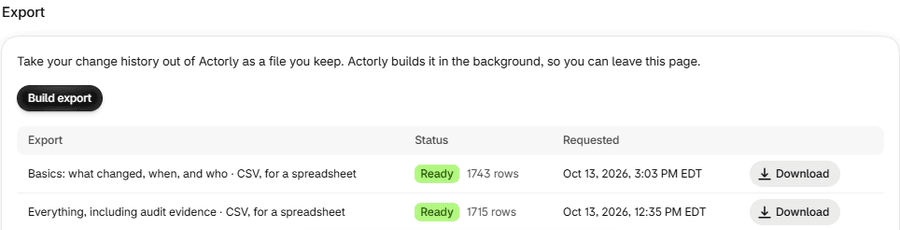
| Status | What it means |
|---|---|
| Waiting | The export is queued. |
| Building | Actorly is building the file. |
| Ready | The file can be downloaded. Choose Download. |
| Did not finish | The export did not finish. Build another. |
What limits apply to an export?
- One at a time. "An export is already being built. Wait for it to finish, then start another."
- The list shows the last 10 exports.
- A file is downloadable for about 3 days. Then a daily clean-up deletes it, so it can last up to a day longer. After that the row can still read Ready with a Download button, and choosing it fails with "Actorly could not start this export." Build another. An export is a read, so rebuilding it costs one click.
- A very large history fails, it is never cut short. A file of more than 500,000 rows, counted as one row for each field that changed, makes the export fail with a reason that names the limit. Narrow the dates or the resource type and build again.
- Removed history is not in it. If your plan removed history, the file says from which date it starts: "Removed history cannot be brought back."
- Some values are redacted. Order notes and addresses are redacted, with the fact and time of the change kept. Customer names, default address, notes and marketing consent are written to the file. Only values already erased for a customer's privacy read [redacted].
If something goes wrong
| What the page says | What it means | What to do |
|---|---|---|
| Export is part of Actorly Restore. Nothing was started. | Your plan does not include export. | See Compare Actorly Watch and Actorly Restore. |
| An export is already being built. Wait for it to finish, then start another. | One at a time. | Wait. |
| Actorly could not read your plan, so it did not start an export. Try again in a moment. | The plan could not be read. | Try again. |
| Actorly could not start this export. Nothing was started; try again. | The export did not start. | Try again. |
| Actorly did not recognise that combination. Pick a detail level and a file type, then try again. | The choices do not fit together. | Pick a detail level and a file type. |
| Actorly could not read your export history. This is a problem reaching your data, not a sign that nothing has happened. | The list could not be read. | Reload. |
| Did not finish | The export did not complete. | Build another, with a narrower range. |
A worked example
Sample: on Actorly Restore you want last month's price changes for your accountant. You open Data room, choose Build export, set What to export to Change history, How much detail to Basics, From and To to last month, Resource type to Variants, and the File type to CSV, for a spreadsheet. The window shows how many columns the file will have. You choose Build export and leave the page. Later the export reads Ready, with its row count, and you choose Download. The file has one row per changed field, with the value before and after, a column for who made it and a column for how sure Actorly is, spelled as a lowercase word such as unknown, possible or pending. Where Shopify records nobody, the who column is empty and the confidence column carries the word. You open it in a spreadsheet within 3 days; after that you would build another.
Frequently asked questions
Is export included on Actorly Watch?
No. Export is on Actorly Restore, $29 per month, or $240 a year. Actorly Watch keeps your history readable in the app.
How long can I download an export?
Actorly deletes an export file 3 days after it is built. Build another if you need it again.
Does an export include who made each change?
Yes, in two columns: the name, and how sure Actorly is as a lowercase word. For a change with no named actor the name column is empty and the confidence column says unknown, pending or investigating.
Can I export the history of a deleted product?
Yes. A change-history export includes the changes of deleted items. A snapshot export has an Include deleted items option, on by default. Actorly keeps a deleted item's record and last recorded values.
Why do some cells in my CSV start with a tab?
A cell that starts with =, +, - or @ is written with a leading tab so a spreadsheet cannot run it as a formula. The text is otherwise unchanged.
Can I export only some of my changes?
Set the From, To and Resource type choices in the Build an export window. The export has no person, confidence or search filter.
What if my history is very large?
The export fails with a reason instead of being cut short. Narrow the dates or the resource type and build again.